


How To Create a Google Group For Google Play console
Purpose of a Google Group for Google Play Console
Creating a Google Group is an essential step for Android developers who need to set up closed testing tracks in the Google Play Console. By organizing a Google Group, you can grant early access to your application, manage permission levels efficiently, and gather valuable feedback from external testers before launching your app publicly on the Google Play Store.
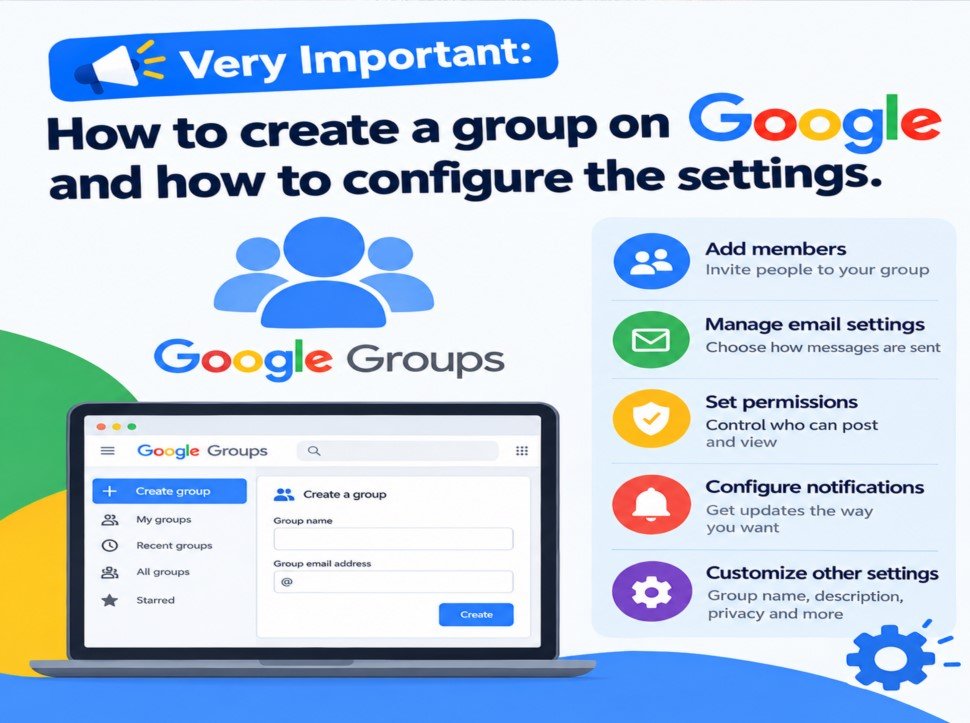
Initiating Group Creation and Basic Setup
To begin the process, navigate to the main dashboard of Google Groups while signed in with the Google account associated with your developer profile or organizational email. Select the option to create a new group, where you will be prompted to enter basic details such as the group name, description, and a custom email address suffix. Make sure to name the group clearly so that prospective testers and team members can easily identify its purpose.
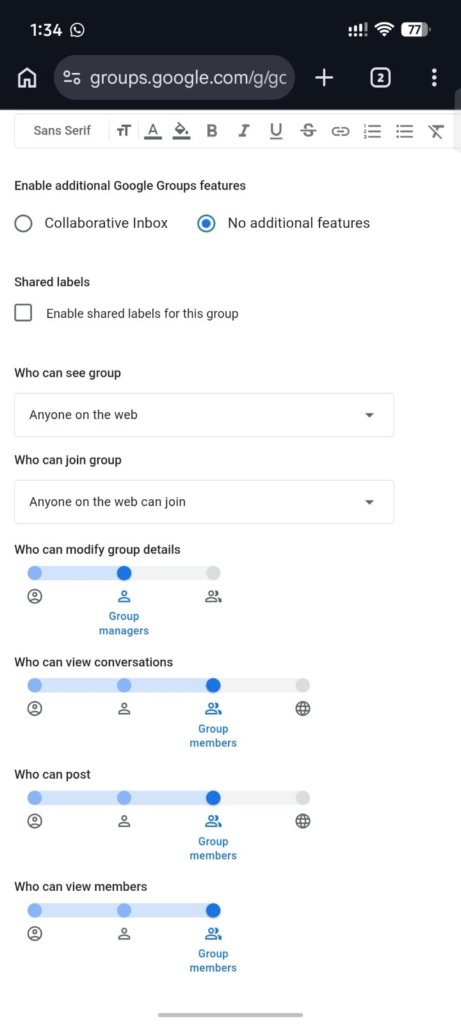
Configuring Access and Permission Settings
Next, configure the privacy and permission settings carefully to align with public testing requirements. Under the additional features section, select “No additional features” and leave “Enable shared labels for this group” unchecked. Set “Who can see group” to “Anyone on the web” and “Who can join group” to “Anyone on the web can join”. For management and access controls, set “Who can modify group details” to Group managers, and configure “Who can view conversations”, “Who can post”, and “Who can view members” to Group members. To begin setting up your group, click here.
Linking Your Group to the Google Play Console
Once your group settings are saved and finalized, you can integrate the group’s email address directly into your Google Play Console dashboard. Under your app’s closed testing track settings, add the Google Group email address to automatically invite members to download and test your application. This ensures seamless access for all participating users while maintaining the required permission structure.
Email address template for your Google Group:
Since it can be difficult to locate the email address and link for your group, here are templates for your Google Group:
(Paste your group name here@googlegroups.com)
Link template for the Google Group you created:
(https://groups.google.com/g/paste your group name here)
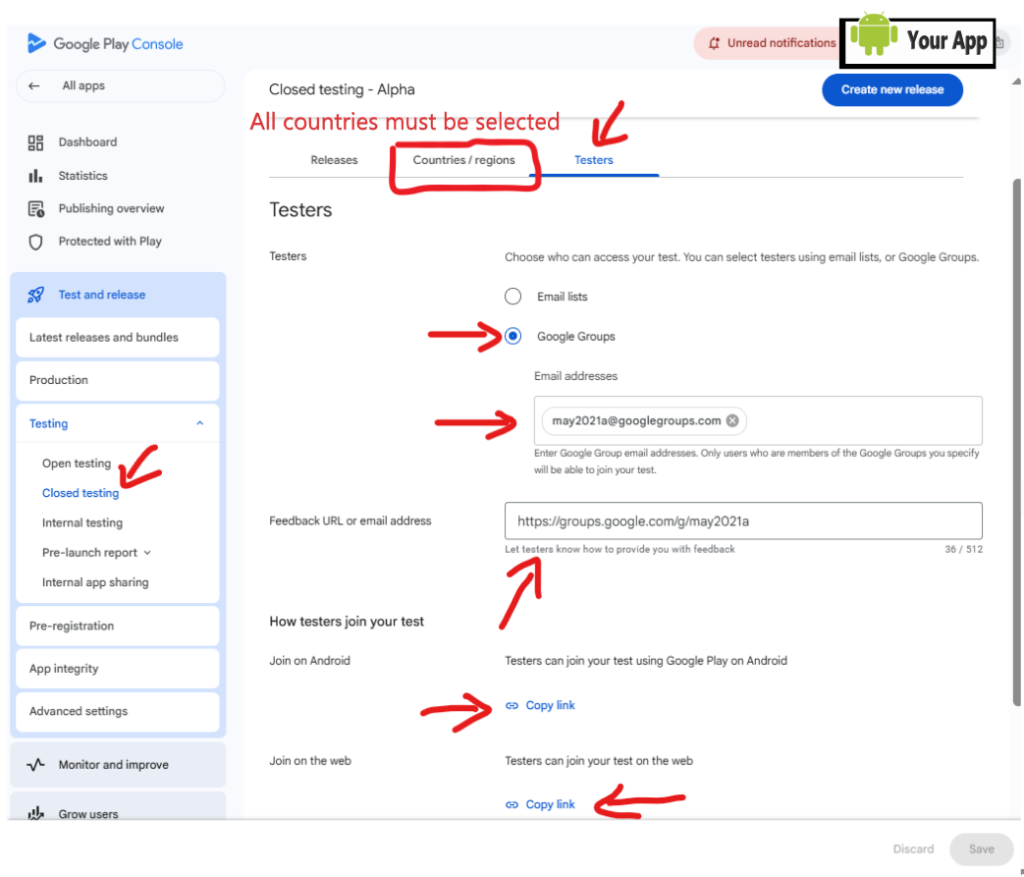
Once you have created your Google Group, you can copy and adjust the email address and link, then paste them into the “Closed testing – Alpha” page—specifically where you select how testers will join your test—as shown in the image below.
This image illustrates the next step after creating a Google Group: you must configure the settings in the Google Console to enable sharing your application with testers.
Instructions for obtaining professional AI-generated answers:
Modify the example question above—or draft your own—then copy and paste it (or type it) into the chat window. Once you receive the response, copy and paste it into the designated answer field in the Google Console.
Important Warning ⚠
You must upload a modified version of your application with a new version number and distribute it to the testing team no later than two days before the closed test concludes. Once the test is accepted, the Google Console team will present the 9 questions previously explained. Failure to complete this step will result in your account manager on the technical team rejecting the test and requiring you to restart the process, without specifying the reason for the rejection. Please take note and ensure you follow these instructions.