

Editing app content on Google Play Console
Log in to Google Play Console and Select Your App
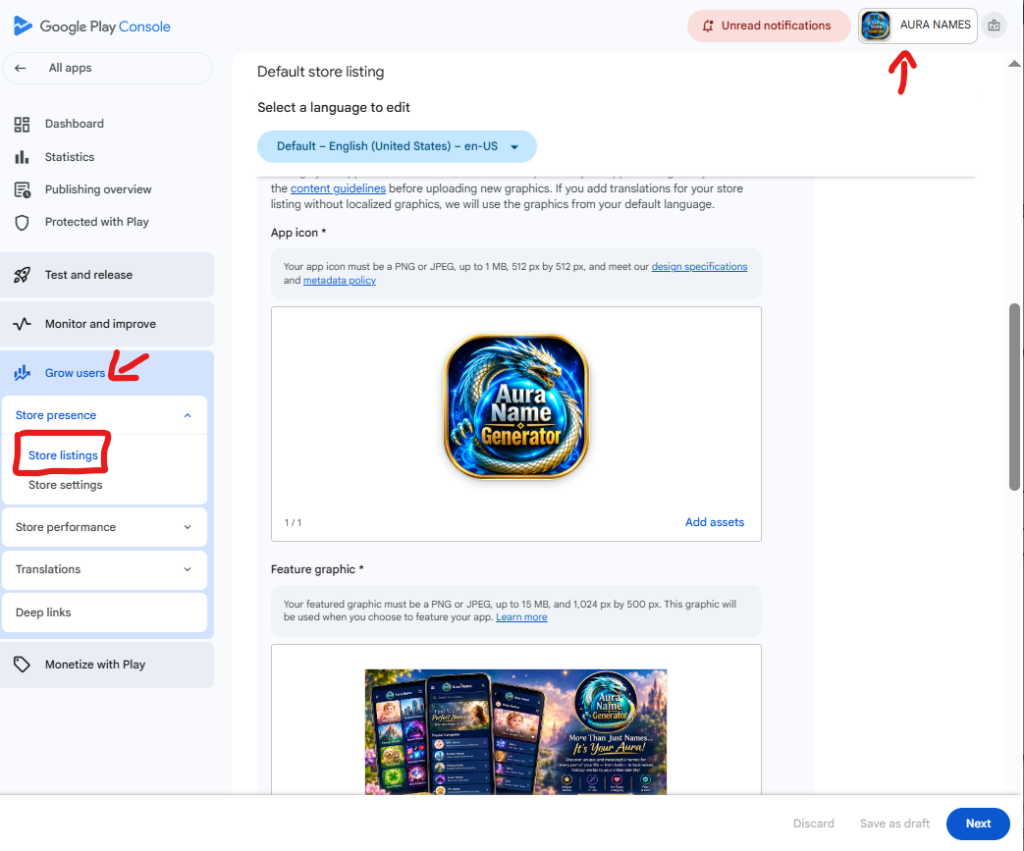
To begin modifying your application’s store information, open your web browser and log in to the official Google Play Console using your developer account credentials. Once logged into the main dashboard, you will see a list of all applications associated with your account. Locate and click on the specific application you want to edit—such as “AURA NAMES” as indicated near the top right of the dashboard screen—to open its dedicated management hub. You can verify that you have selected the correct application by checking the app name and icon displayed in the top bar of the page.
Navigate to the Grow Users Section
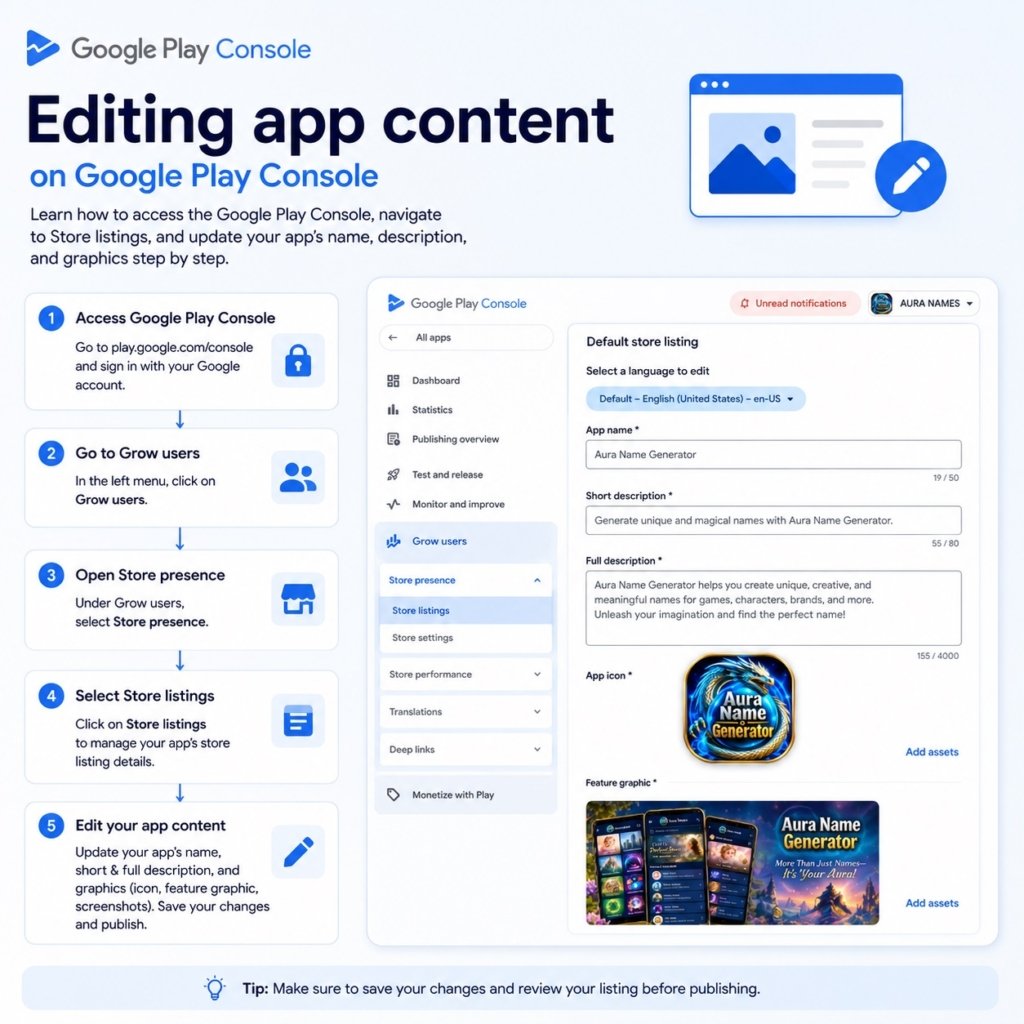
After accessing your application’s management dashboard, direct your attention to the main navigation menu located on the left-hand side of the screen. Scroll down past options like “Dashboard,” “Statistics,” “Test and release,” and “Monitor and improve” until you reach the Grow users parent section. Click on Grow users to expand its sub-navigation options if they are not already visible. To confirm you are in the right section, look for the blue highlighted section icon in the navigation drawer.
Open the Store Listings Page
Within the expanded Grow users section, locate the Store presence dropdown category. Expand Store presence to view its nested sub-menu items, which include options like “Store listings,” “Store settings,” “Store performance,” and “Translations”. Click directly on Store listings (or “Main store listing” depending on your configuration) to load the page where your app’s public-facing text, assets, graphics, and descriptions are configured. You can verify that you have successfully opened the page when the main header displays “Default store listing” alongside language selection controls.
Edit Your App’s Name and Description
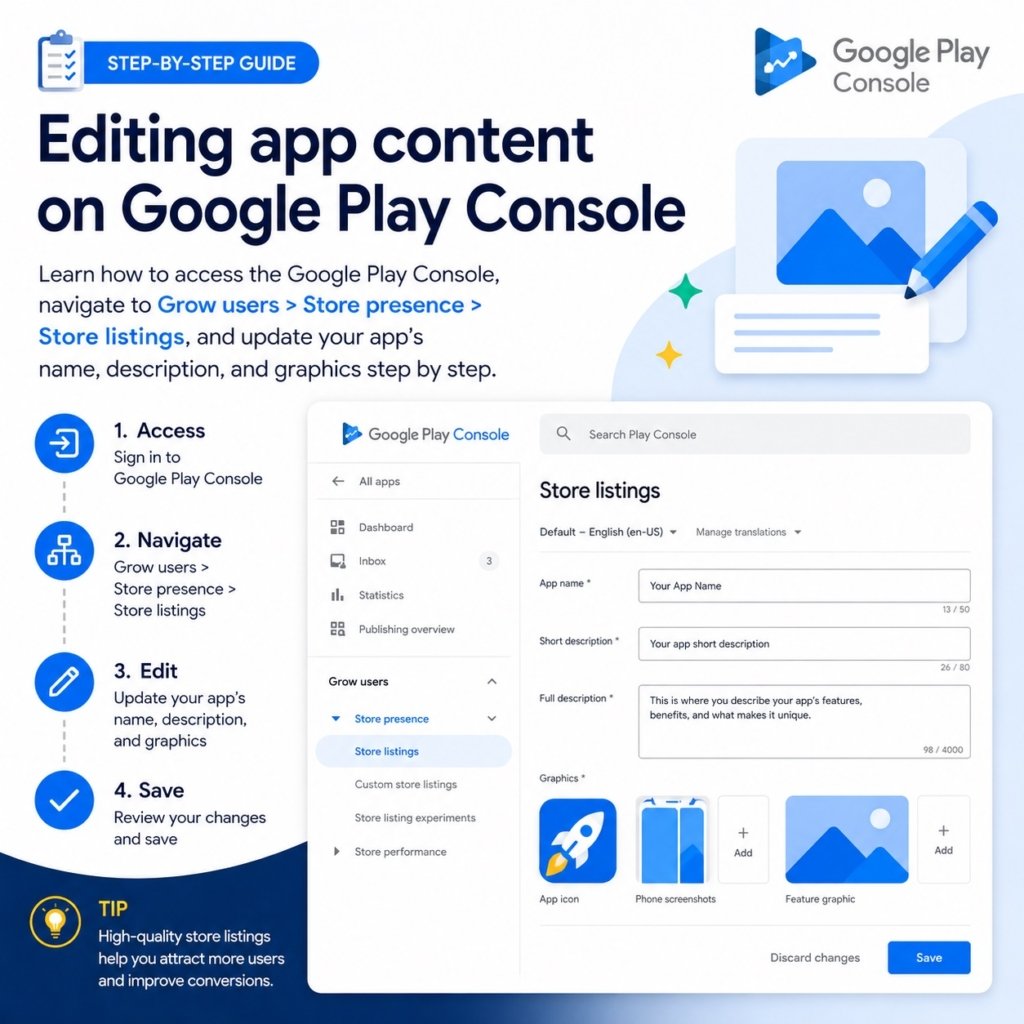
On the Store listings configuration page, select the specific language tab or localized listing you wish to edit using the “Select a language to edit” dropdown menu near the top. Scroll down through the listing fields to locate the App details fields, including the App name, Short description, and Full description text boxes. Enter your updated title and descriptive content, ensuring all changes comply with Google’s metadata policy and graphics specifications. Once you have finished editing and verifying the new text, save your changes or click “Next” at the bottom right corner to submit the update for review. For direct access to the management portal, click here.
Instructions for obtaining professional AI-generated answers:
Modify the example question above—or draft your own—then copy and paste it (or type it) into the chat window. Once you receive the response, copy and paste it into the designated answer field in the Google Console.
Important Warning ⚠
You must upload a modified version of your application with a new version number and distribute it to the testing team no later than two days before the closed test concludes. Once the test is accepted, the Google Console team will present the 9 questions previously explained. Failure to complete this step will result in your account manager on the technical team rejecting the test and requiring you to restart the process, without specifying the reason for the rejection. Please take note and ensure you follow these instructions.