

How to update an app version and upload it to the Google Play Console
Preparing the Release and Navigating Settings
Before uploading your updated application file, ensure that all reported errors have been resolved and that your testing team has verified the app’s functionality. Log in to your Google Play Console dashboard and select the application you wish to update. From the left-hand navigation menu, expand the Test and release section and select the appropriate track, such as Closed testing, Internal testing, or Production, depending on where your new build needs to be deployed. Verify that your store listing, release notes, and target configuration settings reflect the changes introduced in this update.
Updating the Version Code and Building the Release
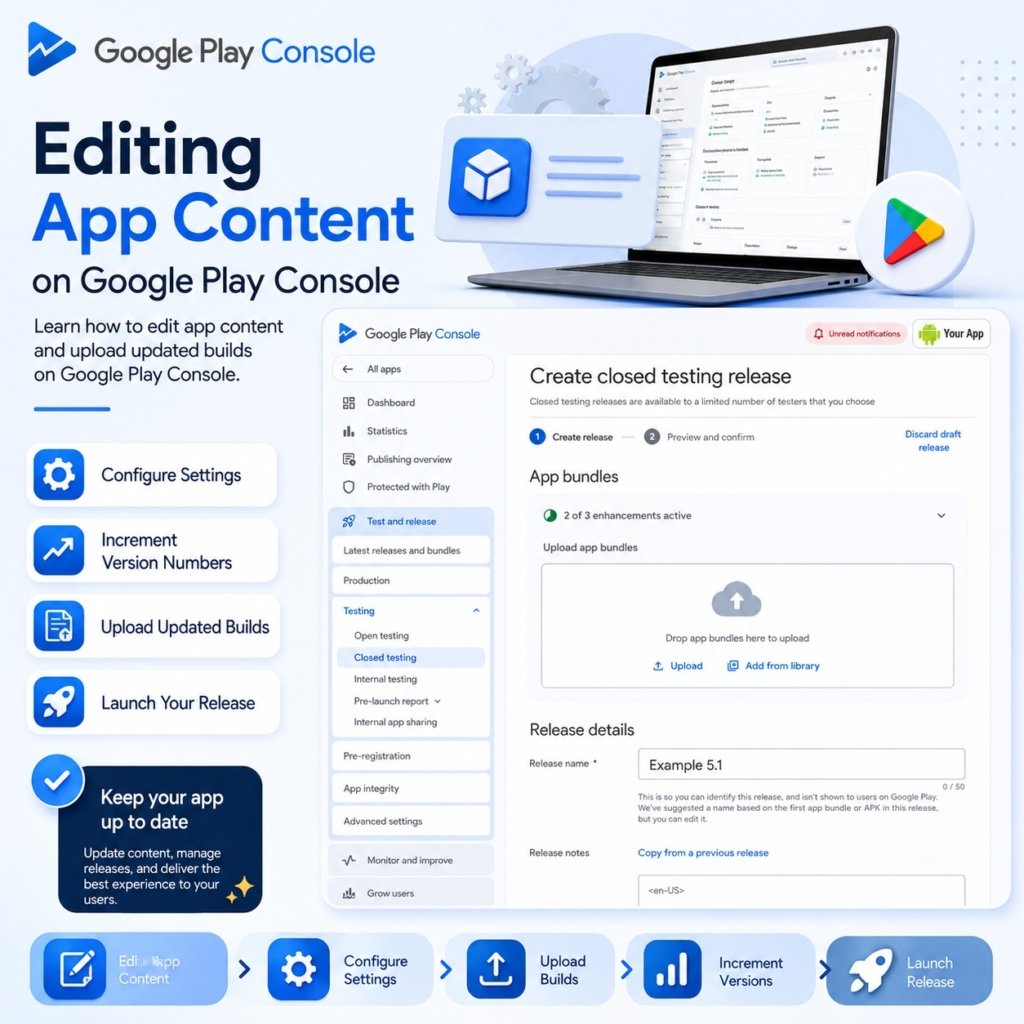
A critical requirement when publishing an update is ensuring that the version code in your app’s build configuration file (such as build.gradle for Android apps) is incremented. Google Play Console will reject any newly uploaded Android App Bundle (.aab) or APK file if its version code is equal to or lower than the previously uploaded version. After updating the version code in your development environment, recompile the project to generate a fresh app bundle file ready for deployment.
Uploading the New App Bundle
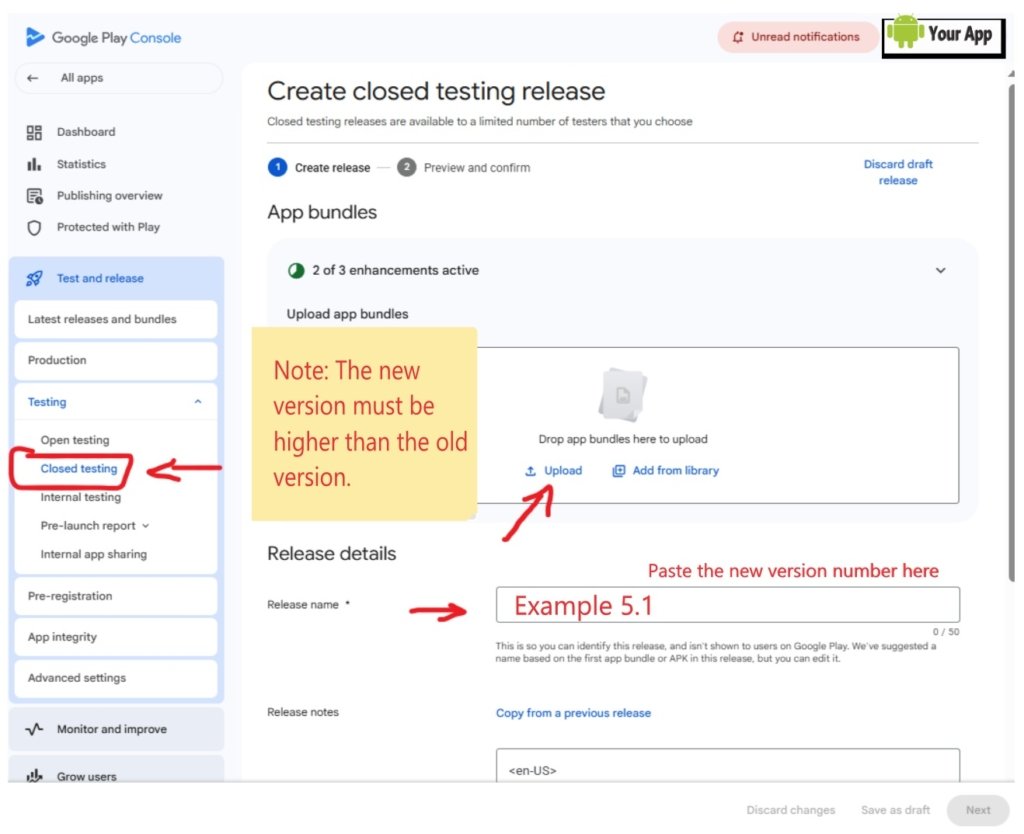
Within your selected release track screen in Google Play Console, click on Create new release. Under the App bundles section, click the Upload button or drag and drop your updated .aab file into the designated upload area. Under Release details, enter a recognizable Release name (such as “Example 5.1”) to help you identify the release internally, and fill out the release notes section to inform users or testers about the latest improvements and bug fixes.
Reviewing and Submitting for Production
Once the app bundle is uploaded and all release details are filled out, click Save as draft followed by Next at the bottom of the page. Review the summary page to check for any warnings or errors that may prevent publication. After confirming that all configurations are correct, complete the process by submitting the release for review to rollout the update to your target users; to access the developer dashboard directly, click here.
Instructions for obtaining professional AI-generated answers:
Modify the example question above—or draft your own—then copy and paste it (or type it) into the chat window. Once you receive the response, copy and paste it into the designated answer field in the Google Console.
Important Warning ⚠
You must upload a modified version of your application with a new version number and distribute it to the testing team no later than two days before the closed test concludes. Once the test is accepted, the Google Console team will present the 9 questions previously explained. Failure to complete this step will result in your account manager on the technical team rejecting the test and requiring you to restart the process, without specifying the reason for the rejection. Please take note and ensure you follow these instructions.